Git in Practical

Version Control
GIT
Distributed version control systems combine the capabilities of local and remote systems. Developers can store the entire codebase locally, allowing independent work and offline changes. Developers then synchronize their local changes to a central server for other collaborators to consume.
Whereas GitHub is a cloud-based service that hosts Git repositories (centralized platform).
Installation
# GIT
sudo apt update && sudo apt install git
git --version

# GIT LFS
sudo apt-get install git-lfs
git lfs install
Configuration
Config file loaded from ~/.gitconfig or ~/.config/git/ dir.
[user]
    name = USER_NAME
    email = USER_MAIL
[core]
    editor = code --wait
[init]
    defaultbranch = main
[log]
    decorate = full
[rerere]
    enabled = false
[advice]
    forcedeletebranch = true
[alias]
    lol = "!git --no-pager log --oneline --decorate --graph --parents"
    wdiff = diff -w --word-diff=color --ignore-space-at-eol
    ss = status -bsv
[commit]
    verbose = true
Global/Local Namespace
--global adds config in global space.
--local adds config at the local git-space level.
git config --global user.name "Your name"
git config --global user.email "email@domain.com"
git config --global core.editor "code --wait"
git config --global init.defaultbranch main
git config --global log.decorate full
git config --global rerere.enabled false
git config --global advice.forcedeletebranch true

# set
git config --add --local webflyx.tone Black
git config --add --local webflyx.status Married
git config --add --local webflyx.status FamilyMan
# unset
git config --unset --local webflyx.tone
# unset-all
git config --unset-all --local webflyx.status
# remove section
git config --remove-section webflyx
Git Tracks Content
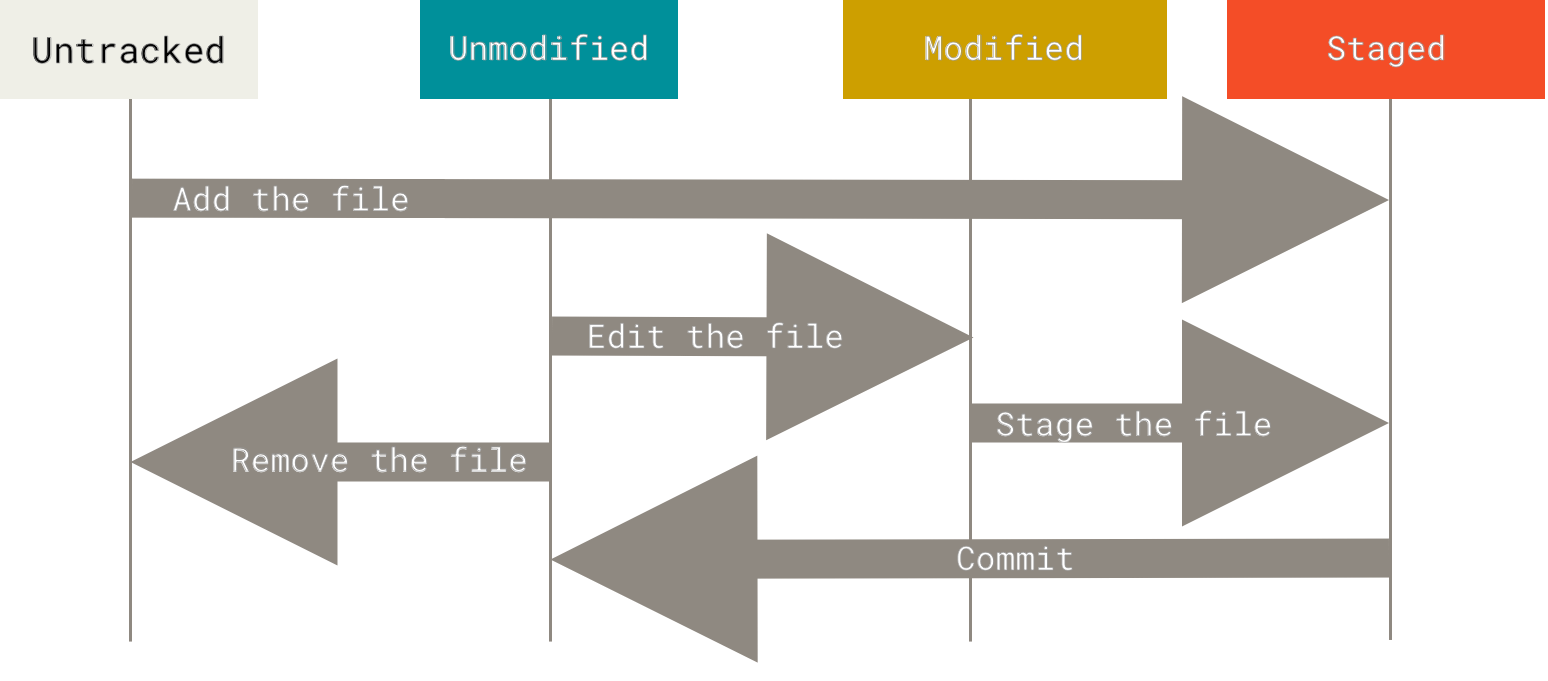
Git is a content tracking system. The Git object store is based on a hashed computation of the content of an object, not on the file or directory names.
Example:
- If two separate files located in 2 different directories have exactly the same content, Git stores a sole copy of that content as a blob within the object store.
- It stores every version of every file — not the differences.
| System | Index Mechanism | Data Store |
|---|---|---|
| Database | Indexed Sequential Access Method | Data Records |
| Git | .git/objects/hash, tree object contents |
Blob Objects, Tree Objects |
.git/
├── branches
├── config
├── description
├── HEAD
├── hooks
│   ├── applypatch-msg.sample
│   ├── commit-msg.sample
│   ├── fsmonitor-watchman.sample
│   ├── post-update.sample
│   ├── pre-applypatch.sample
│   ├── pre-commit.sample
│   ├── pre-merge-commit.sample
│   ├── prepare-commit-msg.sample
│   ├── pre-push.sample
│   ├── pre-rebase.sample
│   ├── pre-receive.sample
│   ├── push-to-checkout.sample
│   ├── sendemail-validate.sample
│   └── update.sample
├── info
│   └── exclude
├── objects
│   ├── info
│   └── pack
└── refs
    ├── heads
    └── tags
Initialize
git init
touch README.md && git add .
git commit -m 'Initial commit'

git clone <url>
git clone -b rbranch --single-branch <url>   # git branch -a && git checkout <remote-branch>
git clone <url> <dir>              # clone into a particular folder
git clone --depth=1 <url>          # bring only one commit
git clone --mirror <repository-url> # mirror

# Adding to repo
git remote add origin <url>
git remote -v                                  # details about push/pull
git remote set-url origin <new-url>            # point origin to a new url
git push -u <origin/REMOTE-NAME> <local-branch-name>:<remote/origin>   # -u makes it upstream
git push -d <branch>                           # delete the remote branch
Log
git --no-pager log --oneline --decorate --graph --parents --all
git show <commit-hash>  # examine a commit
git show HEAD
Branching
git switch <existing-branch>
git switch -c <new-branch>
git branch
git branch -a
git branch -r
git branch -d <branch-name>  # keep git history
git branch -D <branch-name>  # discard git history
Update Only the Latest Commit
git commit --amend -m 'Updated commit message'  # update only the message

# Forgot a file in the commit
git add <file(s)>
git commit --amend --no-edit

# Undo the last commit
git reset --soft HEAD~1  # useful if you want to go back to the previous commit but keep
                          # all your changes. Committed changes become uncommitted and
                          # staged; uncommitted changes remain staged or unstaged as before.

git reset --hard HEAD~1  # also clears it from the staging area and working tree
Tag
git tag                    # list all tags
git show tag-no
git tag -a tag-no          # with annotated message
git push --tags            # push only tags
git push origin tag-no     # push only that tag
git tag tag-no commit-hash
git tag -d tag-no

git tag -a v1.0.0 -m 'Release 1.0.0'  # recommended way

git push origin v1.0.0         # push a specific tag
git push origin --tags         # push all tags
git push origin --delete v1.0.0 # delete a remote tag
Merge
Conflict markers:
<<<<<<< HEAD
  Changes introduced by the main branch
=======
  Changes introduced by the widgets branch
>>>>>>> branch
git merge --abort
git switch main && git merge branch   # --ff --no-ff --ff-only
git merge --squash    # squash-merge the branch (--no-squash to disable)
Fetch
# git push uploads commits from a local repository to a remote repository,
# while git fetch downloads commits.
# git pull = git fetch + merge

git fetch origin main -v
git switch main
git merge origin/main   # or: git rebase origin/main
Stash
When you are in the middle of something and your boss demands you fix something immediately, you’d traditionally commit to a temporary branch to store your changes away, then return to your original branch to make the emergency fix:
- ... hack hack hack ...
- $ git switch -c my_wip
- $ git commit -a -m "WIP"
- $ git switch master
- $ edit emergency fix
- $ git commit -a -m "Fix in a hurry"
- $ git switch my_wip
- $ git reset --soft HEAD^
- ... continue hacking ...
git stash does this in one step:
- ... hack hack hack ...
- $ git stash
- $ edit emergency fix
- $ git commit -a -m "Fix in a hurry"
- $ git stash pop
- ... continue hacking ...
git stash -u                  # stash untracked files as well (-m "message")
git stash show
git stash pop
git stash apply stash@{2}     # or: git stash pop --index 2
git stash drop stash@{2}
git stash clear               # clear all
Revert
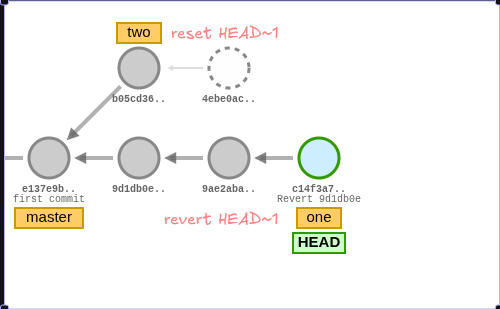
Creates a new commit that undoes a previous one — safe for shared/remote branches since it doesn’t rewrite history.
git revert <commit-hash>            # undo a specific commit (opens editor)
git revert <commit-hash> --no-edit  # skip the editor, use default message
git revert HEAD                     # undo the last commit
git revert HEAD~3..HEAD             # revert a range (newest to oldest)
git revert -n <commit-hash>         # stage the revert without committing (--no-commit)
git revert --continue               # after resolving revert conflicts
git revert --abort                  # abandon the revert mid-way
Note: if the changes you're reverting were pushed, no merge conflict will happen.
Reset
Resets current HEAD to the specified state.
Note: never use git reset on commits already pushed.
git reset --hard COMMISH   # clears the mess from the index file and the working tree
git reset --soft COMMISH   # leaves all your changed files
Restore
git restore is a focused command for discarding working tree changes or unstaging files.
# Discard working directory changes (unstaged)
git restore <file>   # restore file to last commit state; Git retrieves the state of
                      # these file(s) from the HEAD commit and reverts them to that version

git restore .         # restore all modified files

# Unstage a file (move from index back to working tree)
git restore --staged <file>   # you accidentally staged a file and want to unstage it;
                               # equivalent to: git reset HEAD <file>

git restore --staged .        # unstage everything

# Restore from a specific source
git restore --source <commit-hash> <file>  # restore a file from any commit
git restore --source HEAD~2 config.yaml    # example: go back 2 commits for a file
git restore --source origin/main <file>    # restore to remote state
Rebase
Rebase replays commits on top of another base — producing a linear history. Preferred over merge in feature-branch workflows.
                                       H---I---J topicB
                                      /
                             E---F---G  topicA
                            /
               A---B---C---D  master

git rebase --onto master topicA topicB

                            H'--I'--J'  topicB
                           /
                           | E---F---G  topicA
                           |/
               A---B---C---D  master
git rebase --onto <source-branch> <topic-branch>   # replay topic commits one-by-one onto source
# resolve conflicts, then:
git rebase --continue
git rebase --abort
Interactive
git rebase -i HEAD~3 # range from HEAD
Reorder
git rebase -i HEAD~2
# reorder as needed — be careful; accidentally deleting a `commit line` will destroy the commit

# line order only changes below

pick 7f9d4bf Updated README            ->  pick 3f8e810 Accessibility fix
pick 3f8e810 Accessibility fix         ->  pick 7f9d4bf Updated README
Pick
# p, pick <commit> = use commit
# nothing changes
pick 7f9d4bf E:Accessibility fix       -> pick 7f9d4bf E:Accessibility fix
pick 3f8e810 F:Updated screenreader    -> pick 3f8e810 F:Updated screenreader
Squash
# s, squash <commit> = use commit, but meld into previous commit

pick 7f9d4bf E:Accessibility fix       -> pick 7f9d4bf   E:Accessibility fix
pick 3f8e810 F:Updated screenreader    -> squash 3f8e810 F:Updated screenreader
pick ec48d74 G:Added comments          -> squash ec48d74 G:Added comments
A <- B <- C <- D <- E <- F <- G

git rebase -i HEAD~3

A <- B <- C <- D
               ^-- E={E+F+G}
Split
# splitting: use commit, but stop for amending

pick 7f9d4bf E:Accessibility fix         -> pick 7f9d4bf E:Accessibility fix
pick 3f8e810 F:Updated screenreader      -> edit 3f8e810 F:Updated screenreader
pick ec48d74 G:Added comments            -> pick ec48d74 G:Added comments

Stopped at 3f8e810... F:Updated screenreader

# our untracked files
# untrack1.cs untrack5.cs untrack4.cs untrack3.cs untrack2.cs

git add untrack1.cs untrack2.cs untrack3.cs untrack4.cs && git commit -m "Added untrack-files"
git add untrack5.cs && git commit -m "Fixed bug untrack-files"
git rebase --continue

$ git log --oneline --no-pager
A <- B <- C <- D <- E <- F <- "Added untrack-files" <- "Fixed bug untrack-files" <- "G"
Reword
Note: for the most recent commit's message, use --amend
git rebase -i HEAD~2
pick 7f9d4bf Frontpage bug fix   -> reword 7f9d4bf Frontpage bug fix
pick 3f8e810 Refactored navbar   -> pick 3f8e810 Refactored navbar
# edit the commit message
Delete
# d, drop <commit> = remove commit

git rebase -i HEAD~3
# delete it
pick 2f8e823 Refactored          -> pick 2f8e823 Refactored
pick 7f9d4bf Updated README      -> drop 7f9d4bf Updated README
pick 3f8e810 Accessibility fix   -> drop 3f8e810 Accessibility fix
Cherry Pick
git cherry-pick -e <commit-hash>      # cherry-pick and edit commit message
git cherry-pick <commit-hash>         # cherry-pick a single commit
# cherry-pick multiple commits
git cherry-pick <commit1> <commit2>
git cherry-pick <commit1>..<commit2>
Reflog
It records every movement of HEAD, even across resets, rebases, and deleted branches. Entries expire after 90 days by default.
Bisect
Helps find the exact commit that introduced a bug.
Submodules
Include another repository inside your project using git submodule or git subtree.
Advanced Commands
git gc                  # garbage collection
git fsck                 # verify repository integrity
git repack -ad           # optimize repository
git prune                # prune unreachable objects
git count-objects -vH    # show repository size
git blame file.txt       # show who changed each line of a file
git clean -n             # show what would be removed
git clean -f             # remove untracked files
git clean -fd            # remove untracked files and directories
git clean -fdx           # remove ignored files as well
git clean -i             # interactive clean
NOTES::
git reset --harddeletes uncommitted work
`git reset --hard` discards both staged and unstaged changes permanently — no undo. :(

1. `git fsck --lost-found --full --no-reflogs --unreachable`
2. cd `.git/lost-found/`

Checking object directories: 100% (256/256), done.
- unreachable blob `4413d81d94e76ea9a7f7741786f63426d71d297a`
- unreachable blob `e613e50292dd773b7e829f598d58e6d419301ec1`
- unreachable tree 4b825dc642cb6eb9a060e54bf8d69288fbee4904

git show --stat 4413d81d94e76ea9a7f7741786f63426d71d297a > recovery-file-a.txt
git show --stat e613e50292dd773b7e829f598d58e6d419301ec1 > recovery-file-b.txt
- Moving HEAD directly
Running `git checkout <commit-hash>` moves HEAD directly to a commit instead of a branch,
so any new commits won't belong to any branch.

Before leaving, `git checkout -b new-branch-name` to keep work done in detached HEAD.
- Pushed a
.envfile with sensitive data
Revoke and rotate exposed credentials.

`git filter-branch --force --index-filter 'git rm --cached --ignore-unmatch .env' HEAD`

Clean the history: `git push origin --force --all`
- Push rejected — non-fast-forward
Never `git push --force` — it overwrites others' work. Use `--force-with-lease` at minimum.

1. pull: `git pull origin main`
2. resolve the merge conflict
3. push: `git push origin main`

Or rebase instead: `git pull --rebase origin main`

To configure this globally: `git config --global pull.rebase true`
- Wrong commit message
1. `git commit --amend -m 'Correct message here'`
2. if already pushed, `git push --force-with-lease`
- Accidentally deleted a branch
Look in `git reflog` for the last commit on the deleted branch and recreate it with
`git checkout -b recovered-branch <sha>`.
- Forgot to add a file in the last commit
`git add forgotten-file` then `git commit --amend --no-edit`.

If already pushed, `git push --force-with-lease`.
- Need to undo a commit that’s already been pushed and shared
No reset — use revert instead.
- Identify the largest object
git rev-list --objects --all | sort -k2 | tail -20
- Wrong files are being tracked
git rm -r --cached node_modules/
- Empty commit
git commit --allow-empty -m "chore: retrigger CI build"
- Skip CI
git commit --no-verify # git hook bypass
DVC
DVC Installation
Initialize Git and DVC. DVC is normally used together with a supporting SCM tool such as Git.
git init
dvc init
1. Add data to DVC
Tell DVC to manage a dataset or directory:
dvc add path/data_folder/
DVC creates a .dvc metadata file that Git can track while the actual data is stored separately.
Configure DVC
Disable DVC analytics:
dvc config core.analytics false
Enable automatic staging of DVC-generated files:
dvc config core.autostage true
2. Check DVC storage
Check the amount of space used by a DVC-tracked directory:
dvc du path/data_folder/
List configured DVC remotes:
dvc remote list
Google Drive Remote
Before configuring Google Drive as a DVC remote:
1. Open the Google API Console.
2. Enable the Google Drive API.
3. Create credentials.
4. Configure the OAuth consent screen:
   - App name
   - Developer contact information
   - Test users
5. Create an OAuth client.
6. Obtain the:
   - Client ID
   - Client Secret
   - API Key, if required by your setup
Never commit Google credentials, client secrets, API keys, or other sensitive authentication information to Git.
3. Add Google Drive as a DVC remote
Add a Google Drive remote:
dvc remote add --default gdrive gdrive:/GDRIVE-ID
Enable Google Drive abuse acknowledgement:
dvc remote modify gdrive gdrive_acknowledge_abuse true
Configure the Google Drive client ID:
dvc remote modify gdrive gdrive_client_id CLIENT-ID
Configure the Google Drive client secret:
dvc remote modify gdrive gdrive_client_secret CLIENT-SECRET
4. Push data to Google Drive
dvc push -r gdrive # upload DVC-tracked data to the configured remote
When the data changes, DVC updates the corresponding .dvc file with a new hash.
A good practice is to commit the metadata changes to Git:
dvc commit
git add .
git commit -m "Update dataset"
git push
git push does not upload the actual DVC data. Git stores the DVC metadata, while dvc push uploads the data to the configured DVC remote.
Google Drive Authentication in Containers
Google Drive OAuth authentication can be problematic when running DVC inside a container.
For example, DVC/PyDrive2 may use credentials stored under:
/home/USER/.cache/pydrive2fs/XXXXX.apps.googleusercontent.com/default.json
You can configure a local credential path with:
dvc remote modify --local myremote credentialpath default.json
Caution: the local credential approach may not work reliably inside containers. For containerized or CI/CD environments, consider using a Google service account instead.
References
5. Pull data
Pull the data stored in a DVC remote:
dvc pull -r gdrive
For example, if the remote is named local:
dvc pull -r local
6. Checkout data
When switching Git commits or branches, restore the dataset corresponding to the checked-out Git revision:
git checkout <commit-or-branch>
dvc checkout
git checkout changes the DVC metadata version, while dvc checkout restores the corresponding data.
DVC Data Pipelines
7. DVC stages
DVC can be used to define reproducible data-processing and machine-learning pipelines.
dvc stage add
Basic syntax:
dvc stage add -n <stage-name> -p <parameter> -d <dependency> -o <output> <command>
Common options:
| Option | Description |
|---|---|
| -n | Name of the stage |
| -p | Declare parameters used by the stage |
| -d | Declare dependencies |
| -o | Declare output files or directories |
Example:
dvc stage add -n train -d src/train.py -d configs/experiment/catdog.yaml -o logs -o outputs python src/train.py data.batch_size=64 model.pretrained=false trainer.max_epochs=10 logger=comet
DVC records the stage definition in dvc.yaml.
Parameters can be maintained in params.yaml or other configured parameter files.
8. Reproduce the pipeline
Run the pipeline:
dvc repro
DVC determines which stages need to be executed based on changes to dependencies, parameters, commands, and outputs.
Amazon S3 + DVC
Installation
Install the S3 support for DVC:
pip install "dvc[s3]"
Create an AWS IAM user
Create an IAM user with the required permissions for the S3 bucket.
For a simple setup, the user may have:
AmazonS3FullAccess — AdministratorAccess avoid this in production unless genuinely required.
Important: prefer the principle of least privilege. For production, create an IAM policy that only allows the required operations on the specific S3 bucket.
Configure AWS CLI
Set up the AWS CLI on the machine:
aws configure
Enter the requested values:
AWS Access Key ID:
<AWS_ACCESS_KEY_ID>
AWS Secret Access Key:<AWS_SECRET_ACCESS_KEY>
Default region name:ap-south-1
Default output format:json
Verify the configuration:
aws s3 ls
Initialize Git and DVC
git init
dvc init

git add .
git commit -m "Initialize DVC"

git branch -M main

# DVC
dvc add path_to_dataset/                    # add the dataset
dvc remote add -d myremote s3://bucket-name # add an S3 bucket as the default DVC remote
dvc push
dvc pull
Workflow
The overall workflow is:
                 Git
                  │
                  │  dvc.yaml / *.dvc / params.yaml
                  ▼
            Git repository
                  │
                  │
                  ▼
             DVC metadata
                  │
                  │ dvc push / dvc pull
                  ▼
        ┌─────────────────────┐
        │   DVC Remote        │
        │                     │
        │ Google Drive / S3   │
        └─────────────────────┘
Important: Git and DVC have different responsibilities. Git tracks code and DVC metadata, while the DVC remote stores the actual datasets and pipeline outputs.